

Создание проекта в Castle Game Engine 7
Степень завершённости урока: 35%
Статистика урока:
- Количество снимков: 6
- Время чтения: менее 15 минут
- Уровень сложности: лёгкий
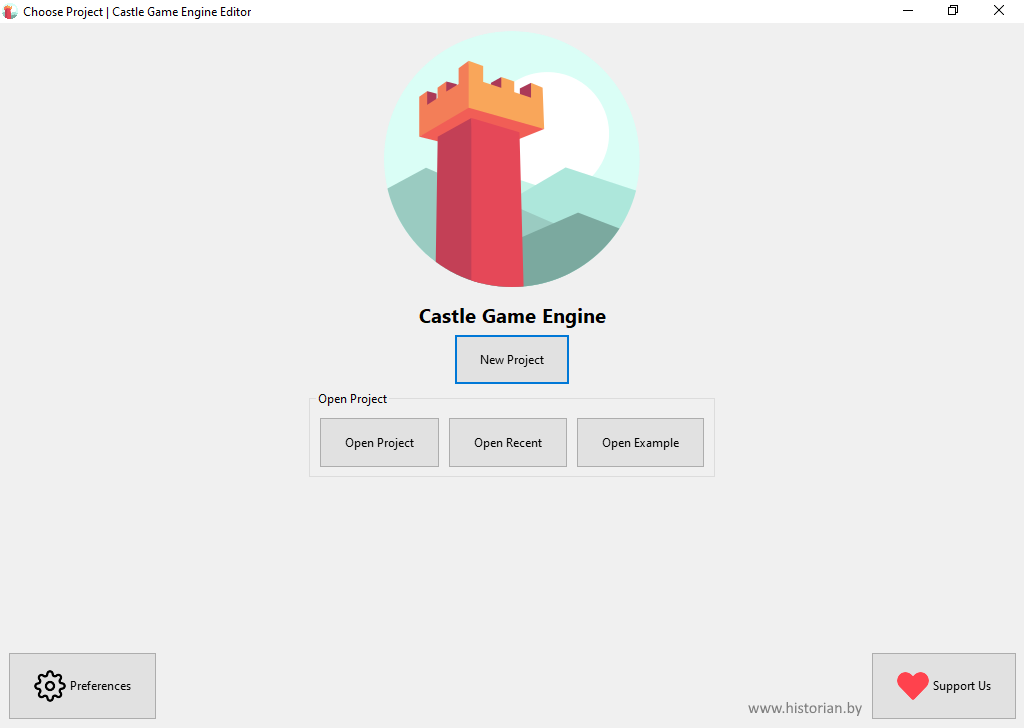
При запуске среда разработки Castle Game Engine предложит несколько вариантов на выбор:
- создать новый проект
- открыть сохранённый ранее проект
- открыть один из примеров следующих категорий:
advanced_editor
animations
audio
castlescript
component_gallery и т.д.
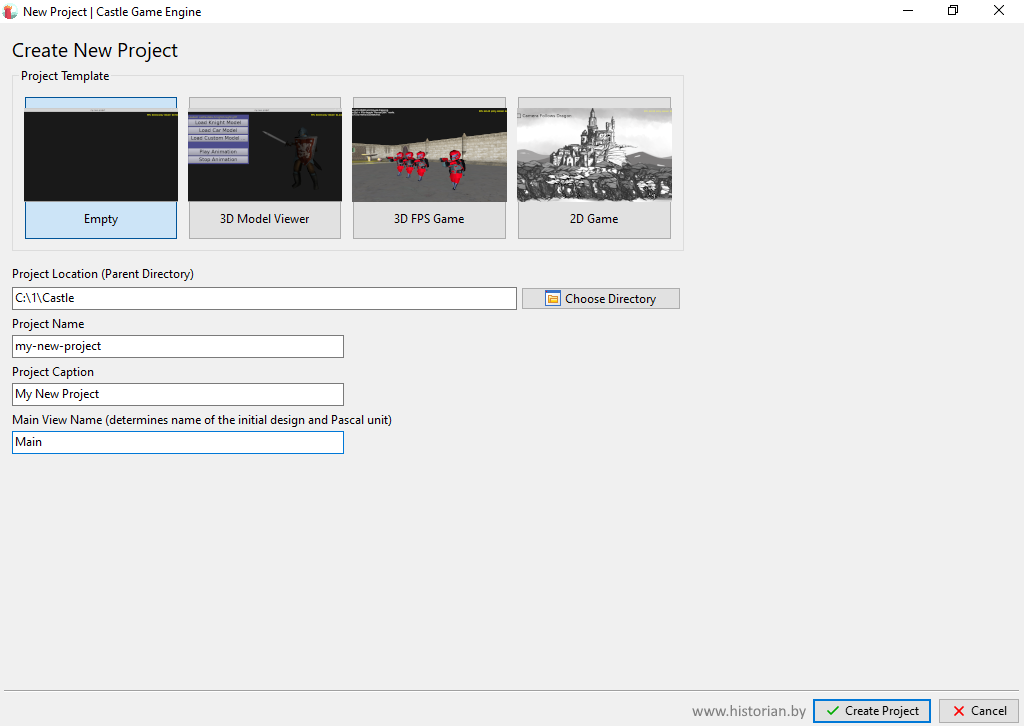
При создании новой игры также возможны несколько вариантов:
- пустой проект
- 3D Model Viewer
- 3D FPS Game ("стрелялка")
- 2D Game
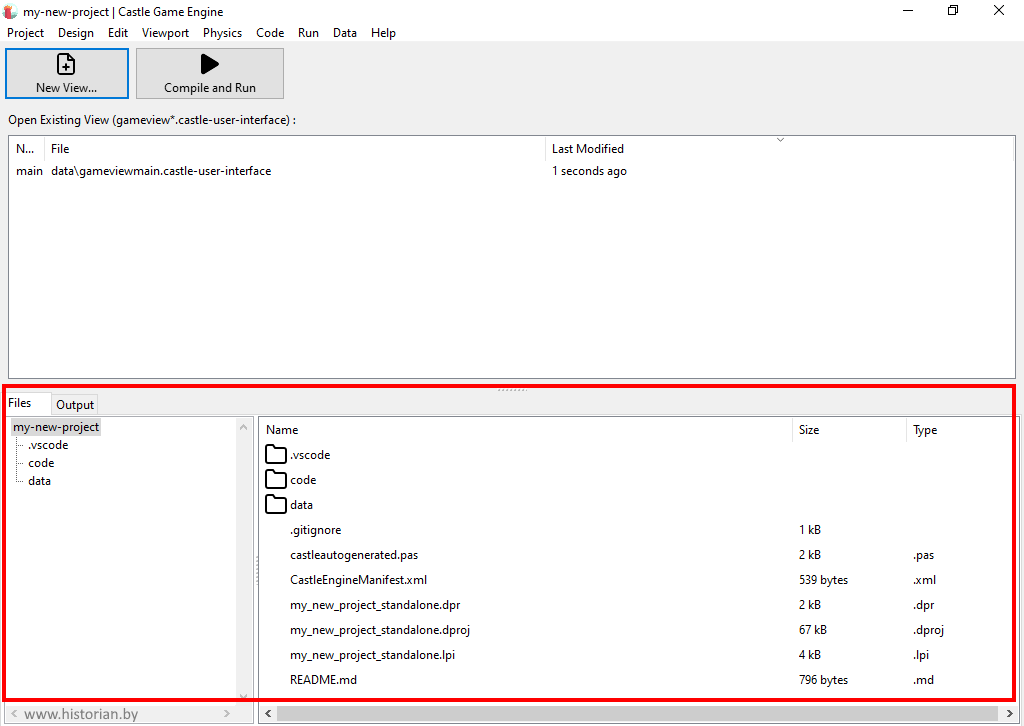
Пустой проект состоит из следующих файлов:
- castleautogenerated.pas
- CastleEngineManifest.xml
- название_проекта_standalone.dpr
- название_проекта_standalone.dproj
- название_проекта_standalone.lpi
- README.md
{ Auto-generated unit with information about the project. The information set here reflects the CastleEngineManifest.xml properties. You should not modify this file manually. Regenerate it using CGE editor "Code -> Regenerate Project" menu item (or command-line: "castle-engine generate-program"). Note: This file has UTF-8 BOM, which makes sure that string literals are interpreted as UTF-8. This is important, as CGE build tool will place here caption encoded in UTF-8. Without the BOM, right now both FPC and Delphi would interpret the file as having ANSI encoding on Windows (see https://blogs.embarcadero.com/the-delphi-compiler-and-utf-8-encoded-source-code-files-with-no-bom/ , https://wiki.freepascal.org/FPC_Unicode_support#Source_file_codepage ) }unit CastleAutoGenerated;interfaceimplementationuses CastleApplicationProperties, CastleWindow, CastleLog;initialization ApplicationProperties.ApplicationName := 'my-new-project'; ApplicationProperties.Caption := 'My New Project'; ApplicationProperties.Version := '0.1'; if not IsLibrary then Application.ParseStandardParameters; { Start logging. Should be done after setting ApplicationProperties.ApplicationName/Version, since they are recorded in the first automatic log messages. Should be done after basic command-line parameters are parsed for standalone programs (when "not IsLibrary"). This allows to handle --version and --help command-line parameters without any extra output on Unix, and to set --log-file . } InitializeLog; {$ifdef DEBUG} { Enable debug features, like inspector and file monitor, in debug mode. We call it here, to depend on the DEBUG define when compiling the project -- and not depend on DEBUG define when compiling the engine. } ApplicationProperties.InitializeDebug; {$else} { Enable release features at run-time. This does *nothing* for now, but enables possible future extensions (e.g. special optimizations). } ApplicationProperties.InitializeRelease; {$endif}end.Содержимое файла название_проекта_standalone.lpi
{ AUTO-GENERATED PROGRAM FILE. This file is used to build and run the application on desktop (standalone) platforms, from various tools: - Castle Game Engine command-line build tool - Castle Game Engine editor - Lazarus IDE - Delphi IDE You should not modify this file manually. Regenerate it using CGE editor "Code -> Regenerate Program" menu item or the command-line: "castle-engine generate-program". Along with this file, we also generate CastleAutoGenerated unit. }{ Note: The "program" declaration is optional in Pascal. But we keep using it, otherwise Delphi IDE breaks the "uses" clause when adding units to the project. }program my_new_project_standalone;{$ifdef MSWINDOWS} {$apptype GUI} {$endif}{ This adds icons and version info for Windows, automatically created by "castle-engine compile". }{$ifdef CASTLE_AUTO_GENERATED_RESOURCES} {$R castle-auto-generated-resources.res} {$endif}uses {$if defined(FPC) and (not defined(CASTLE_DISABLE_THREADS))} {$info Thread support enabled.} {$ifdef UNIX} CThreads, {$endif} {$endif} CastleAutoGenerated, CastleWindow, GameInitialize;{ Forces using a dedicated (faster) GPU on laptops with multiple GPUs. See https://castle-engine.io/dedicated_gpu }{$if (not defined(CASTLE_NO_FORCE_DEDICATED_GPU)) and (defined(CPU386) or defined(CPUX64) or defined(CPUAMD64)) and (defined(MSWINDOWS) or (defined(LINUX) and defined(FPC)))} {$ifdef FPC} {$asmmode intel} {$endif} procedure NvOptimusEnablement; {$ifdef FPC}assembler; nostackframe;{$endif} asm {$ifdef CPU64} {$ifndef FPC} .NOFRAME {$endif} {$endif} dd 1 end; procedure AmdPowerXpressRequestHighPerformance; {$ifdef FPC}assembler; nostackframe;{$endif} asm {$ifdef CPU64} {$ifndef FPC} .NOFRAME {$endif} {$endif} dd 1 end; exports NvOptimusEnablement, AmdPowerXpressRequestHighPerformance;{$ifend}begin Application.MainWindow.OpenAndRun;end.На вкладке "Files" представлены все папки и файлы созданного проекта.
В папке "data" размещаются ресурсы проекта (текстуры, модели, звуки, шрифты, дизайны). При двойном клике на каком-либо ресурсе редактор Castle Game Engine попытается открыть его в ассоциированном приложении - например, txt в блокноте, gltf - в Blender и т.д.
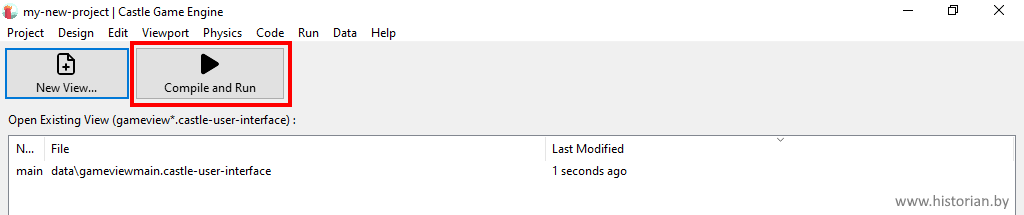
Нажмите на кнопку "Compile and run" для запуска проекта.
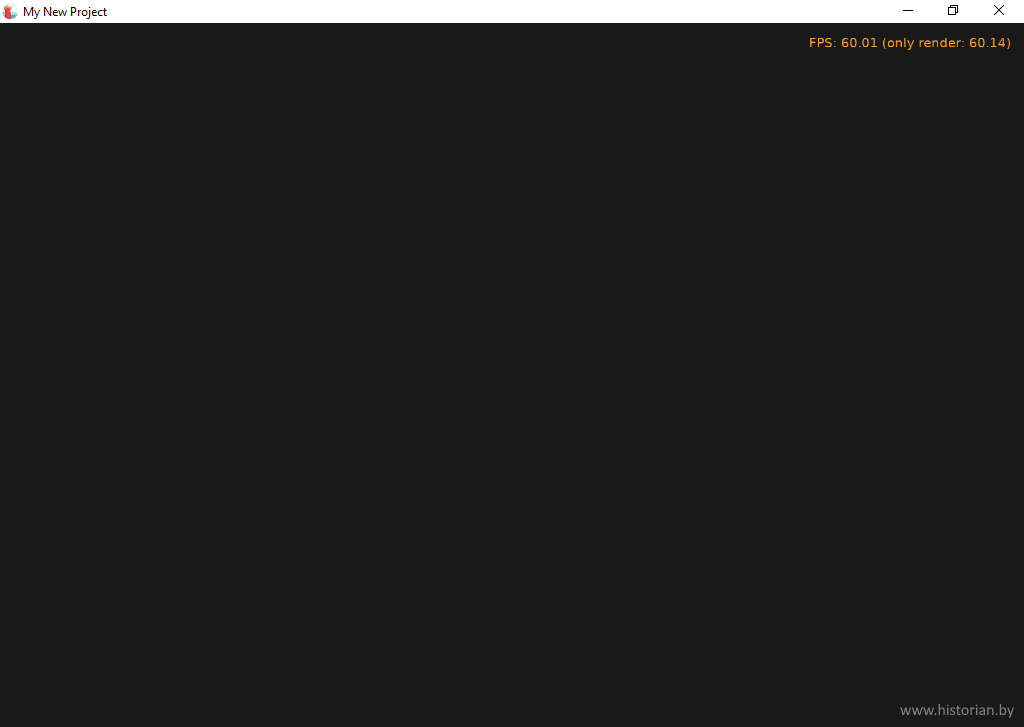
Процесс компиляции займёт какое-то время, после чего отобразится пока пустое окно.
Castle Game Engine позволяет добавить в интерфейс различные компоненты, в том числе:
- Button
- CheckBox
- Color Rectangle
- Crosshair
- Design (Use Another castle-user-interface File)
- Edit
- Edit (Float)
- Edit (Integer)
- Empty Rectangle
- Flash Effect
- Float Slider
- Horizontal Group
- Image
- Integer Slider
- Label
- Mask
- Navigation
- Notifications
- Scroll View
- Scroll View Manual
- Shape
- Timer
- Touch Navigation
- Vertical Group
- Viewport (2D)
- Viewport (3D)
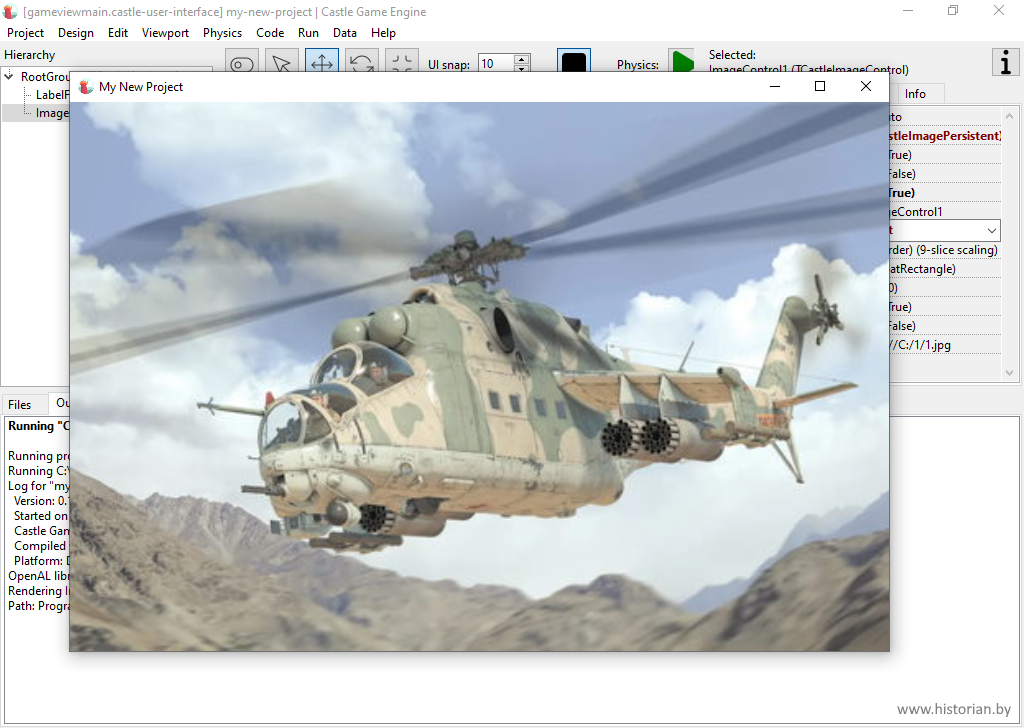
Вот так выглядит пример программы с компонентом Image.
Castle Game Engine 7 поддерживает следующие форматы изображений:
- PNG
- JPEG
- WebP
- DDS
- KTX / KTX2
- SVG
Предложить идею по улучшению урока в мессенджере Max или мессенджере Telegram
Страница обновлена 31 мая 2026 года.